
開始使用 Haruno
從安裝應用程式到完成第一個月的結帳:登入、開啟審閱工作區、設定一家公司,並閱讀結帳找到的發現事項。
您需要準備什麼
開始之前,請確認您已備妥以下項目。
- 搭載 Apple 晶片、執行 macOS 15 或更新版本的 Mac。
- Haruno 帳戶。
- 您的審閱工作區。訂閱後,我們會與您一起建置審閱工作區。
- 一家公司的活頁簿:其 QuickBooks 報表匯出檔或 Excel 財務資料包、調節底稿,以及預算(如果該公司有編列預算)。
- 網際網路連線,用於登入及與 Haruno 對話。結帳指令碼本身不需要網路。
Haruno 將每家公司稱為 client;資料夾名稱、指令與儀表板中使用的都是這個字。
審閱目前在 macOS 應用程式中執行。若要與不使用 Haruno 的人分享儀表板或報告,請將其匯出為 PDF。
安裝並啟動
下載 Mac 版 Haruno,將它拖入「應用程式」資料夾後開啟。完整步驟(包括 macOS 警告開發者身分不明時該怎麼做)請參閱《安裝並登入》。
在您的電腦上登入
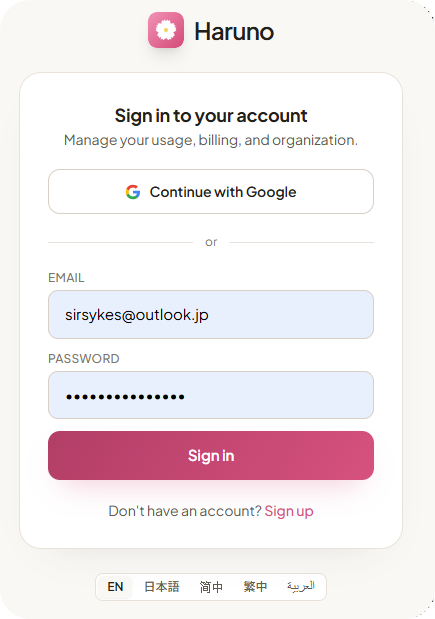
在第一次對話之前,請先登入您的 Haruno 帳戶。全新安裝時,Haruno 會先請您選擇專案資料夾(見下一節),選好之後,帳戶選單才會出現在側邊欄中。為了保護您的密碼,應用程式從不直接要求您輸入密碼,而是開啟您的瀏覽器,由您在瀏覽器中確認連線。您核准後,桌面應用程式即與您的帳戶連結。帳戶可使用 Google 登入,或以電子郵件與密碼登入。
- 從側邊欄底部的帳戶選單選擇「登入…」(Sign In…),或開啟「設定」(Settings,⌘,)▸「一般」(General),然後按一下「登入 Haruno」(Sign in to Haruno)。您的瀏覽器會開啟 Haruno 網站。
- 確認瀏覽器中顯示的裝置名稱與您電腦的名稱相符。
- 按一下「授權」(Authorize),將這台電腦連結至您的帳戶。
- 回到應用程式。您已完成登入。
您可以在多台電腦上登入。您可以隨時在 Haruno 網站上您帳戶的「帳戶」頁面,管理或撤銷已連結的電腦。
開啟審閱工作區
您的審閱工作都放在同一個資料夾中,也就是審閱工作區:包含 .haruno 資料夾的那個資料夾。在 Haruno 中開啟它之後,Haruno 會從中取得審閱所需的一切。
- 首次啟動時,Haruno 會顯示「選擇專案資料夾」(Choose a project folder)。按一下「選擇專案資料夾…」(Choose Project Folder…)按鈕。
- 選取您的審閱工作區,也就是包含 .haruno 的資料夾。請選擇這個資料夾本身,而不是它的上一層,也不是其中的子資料夾。
- 之後若要切換資料夾,請選擇「檔案 ▸ 打開資料夾…」(File ▸ Open Folder…,⌘O)。
Haruno 會從您開啟的資料夾讀取審閱設定,不會到周圍的資料夾中尋找,因此必須選對資料夾。工作區是自成一體的:您之後可以重新命名或搬移它,不會遺失任何內容,包括已完成結帳的月份。
工作區裡有什麼
使用中的工作區結構如下:
.haruno/      審閱本身:每家公司的對應設定檔(spec)與結帳指令碼
workbooks/    各公司提供的檔案,每家公司一個資料夾
ledger/       結帳建立的標準化分類帳,並保存每份來源活頁簿的副本
reports/      依公司區分:財務報表包、調節底稿、投資人報告、調整紀錄
dashboards/   投資組合儀表板
結帳所讀取與寫入的一切,都留在這個資料夾中。
設定您的第一家公司
將該公司的活頁簿放入工作區內的 workbooks/<client>/:每月的財務資料包或單純的報表匯出檔、調節底稿,以及預算(如果有的話)。若公司的經常性收入記錄在帳單或 CRM 系統中,可以將該系統的匯出檔以 CSV 格式加入。完整清單請參閱「公司提供的檔案」。
若您想取得 Haruno 的效益,又不想在對話中傳送客戶資料,請自行執行結帳指令(請參閱「自行執行」),只在不含客戶資料的部分使用助理。詳情請參閱《資料處理與安全性》中的「您的資料流向何處」一節。
接著,用您自己的話請 Haruno 設定這家公司:
Acme 剛簽約,檔案已經放在 workbooks 裡了,請幫他們完成設定。Haruno 會讀取這些活頁簿,並草擬一份對應設定檔(spec,每家公司一份 YAML 檔):哪些科目代號歸入哪個報表項目、每個小計如何組成,以及哪些項目以與正常餘額方向相反之正負號表達。若提供的是財務資料包,其中幾乎所有內容都直接讀自公司自己的活頁簿,因為報表本身就寫明了其中的計算關係,所以草稿並不是猜測。若只有單純的報表匯出檔,則還沒有可讀取的科目對應:草稿會根據每份匯出檔本身的區段推斷對應,並保留會計平台的項目名稱;將這些名稱改為您在報表中使用的項目名稱,是下方清單中的主要項目。
閱讀 REVIEW 清單
Haruno 讀不出來的,是需要判斷的部分。這些事項會以 # REVIEW: 清單的形式列在草稿頂端,例如:
- 若為單純的報表匯出檔:各報表項目名稱。在您提供報表上所使用的項目名稱之前,草稿會保留會計平台的名稱。
- 重大性:多少金額以上視為重大。
- 哪些科目缺少調節屬於預期情況。清單會列出調節底稿中沒有明細表的科目。
- 公司的資本化政策:資本化門檻、折舊方法與耐用年限。
- 表達貨幣:當匯出檔宣告的貨幣不是美元,或各活頁簿之間不一致時。每家公司只使用一種貨幣,數字從不換算。
- 科目代號的分類方式:哪個首位數字代表資產、負債、權益、收入或費用。
- 公司名稱,取自公司自己的檔案(財務資料包的封面工作表,或匯出檔的標題區塊)。
請閱讀這份清單。這就是科目對應對話,每家公司只需進行一次。結帳需要起始值時,草稿會先填入一個值,並在清單中註明:重大性的起始值是明示的預設值 $1,000(以元計,即使報表以千元為單位表達也是如此),科目分類採用常見的首位數字慣例,折舊方法則為直線法,這是結帳唯一會計算的折舊方法。請確認或修改這些值。資本化門檻與耐用年限,草稿從不預先填入:在您明確提供之前,不會依據任何門檻回報事項,固定資產明細表也只會與總分類帳(GL)比對。
用一般的說法回答即可,例如:
重大性設為一千美元,現金是在 QuickBooks 裡做調節。Haruno 會將每個回答記錄到對應設定檔中,並明確顯示變更了哪些內容。讓某些科目免於某項檢核的回答(例如現金是在 QuickBooks 中調節,而不是在調節底稿中調節),就是一項豁免。該公司完成某月結帳後,Haruno 會列出每項豁免涵蓋的科目。在此之前沒有可比對的對象,因此第一次結帳時,未涵蓋任何科目的豁免會被回報為 unused_exemption 發現事項。Haruno 不會修改您的活頁簿。核准對應設定檔後,結帳便會執行。
第一次結帳
您核准對應設定檔後,第一次結帳便會執行。它會讀取每一份活頁簿、套用已核准的對應設定檔、執行完整性檢核、寫出該公司的報告,並更新儀表板。完成後,它會回報發現事項、任何需要由人決定的事項,以及它寫出的檔案。在任何內容傳閱之前,Haruno 會先向您逐一說明這些發現事項。
先看發現事項
完整性檢核會在寫出任何報告之前執行,而這正是重點所在:某個科目有餘額,卻沒有任何報表項目涵蓋它;某份明細表所列的總分類帳數字與分類帳不一致;某個手動輸入的差額聲稱核對相符,明細卻顯示並不相符。發現事項不會中止結帳。這正是您原本要到第三週才會發現的事。
每項發現事項都有嚴重程度:高、中或低。沒有高或中嚴重程度發現事項的月份,即為「clean」。每項檢核會找出哪些情況,請參閱《發現事項與檢核》中的「檢核項目」一節。部分檢核使用的門檻是以單一公司的帳簿校準的;請將這些門檻視為起點。
之後的每個月
將新月份的活頁簿放入該公司的資料夾,然後說:
請為 Acme 完成本月結帳,新的活頁簿已經放好了。執行的是同樣的結帳,但不再需要科目對應對話:科目對應已經核准定案。如果您想更改其中某項對應,直接說明即可,例如「1450 Deposits Receivable 應歸入 Other assets」。Haruno 會在對應設定檔中以幾行可供審閱的 YAML 提出變更,而不是修改您的活頁簿。
您會得到的檔案
| 產出 | 內容說明 |
|---|---|
| 財務報表包 | 依該公司自己的格式編排的報表。 |
| 調節底稿 | 每份明細表重新計算的結果,並標示出各項例外。 |
| 投資人報告 | 提供給出資者的公司數字。其中不包含發現事項、科目對應表與調節狀態;預算與實際比較只有在該公司的對應設定檔如此指定時才會出現。 |
| 調整紀錄 | CSV 檔 reports/<client>/adjustments.csv:每次重編已鎖定月份時,每個數字各記一列。若檔案只有標題列,表示沒有任何重編。 |
| 投資組合儀表板 | 所有公司集中於一個畫面中。 |
當某家公司的投資人要求提供近況更新時,請將投資人報告匯出為 PDF 後寄送,而不是寄送儀表板:儀表板包含所有公司與所有發現事項。
月份隨即鎖定
結帳會鎖定它所報告的月份。此後,任何會變更已鎖定月份中數字的匯入都會被拒絕,直到有人重新開啟該月份並說明理由為止;該理由會與它所允許變更的數字一併保存。變更已核准的科目對應也算在內,因為這會改動已鎖定月份中的數字。
鎖定不是對帳簿的定論。在仍有未解決的高或中嚴重程度發現事項時完成結帳的月份,會記錄為「reported with exception」(附例外事項報告)。償債能力跡象在此不列入計算:它們描述的是公司本身,而不是記帳工作。只有當每個已鎖定月份在結帳時都沒有任何未解決事項,該公司才會是「fully reconciled」(全部調節相符)。
各報告與鎖定機制的詳細說明,請參閱《報告與結帳鎖定》。若要在不使用助理的情況下執行結帳,請參閱「自行執行」;只需要標準的 Python 3,不需要其他任何東西。
接下來可以閱讀
您已經完成了一個月的結帳。以下頁面會更深入說明您剛才完成的每個環節。
審閱流程:新增公司、科目對應對話、完成某月結帳,以及結帳拒絕某次匯入時該怎麼做。
發現事項與檢核:每項檢核、其嚴重程度的意義,以及如何解決發現事項。
投資組合儀表板:如何解讀每個面板,以及適用於整個儀表板的解讀原則。
資料處理與安全性:結帳時哪些內容留在您的 Mac 上、對話會傳送什麼,以及我們保留哪些資料。