
First steps with Haruno
From installing the app to your first closed month: sign in, open your review workspace, set up a company and read what its close found.
What you need
Before you start, make sure you have these.
- A Mac with Apple silicon running macOS 15 or later.
- A Haruno account.
- Your review workspace. After you subscribe, we set up your review workspace with you.
- The workbooks for one company: its QuickBooks statement exports or Excel financial package, its reconciliation binder, and its budget if it keeps one.
- An internet connection for sign-in and for conversations with Haruno. The close scripts themselves need no network.
Haruno calls each company a client; that is the word in folder names, commands and the dashboard.
The review runs in the macOS app today. To share the dashboard or a report with someone who does not use Haruno, export it as a PDF.
Not subscribed yet? Use the contact form, Talk to us. What a subscription includes is on Pricing and billing.
Install and launch
Download Haruno for Mac, drag it into your Applications folder and open it. The full steps, including what to do if macOS warns about an unidentified developer, are on Install and sign in.
Sign in on your computer
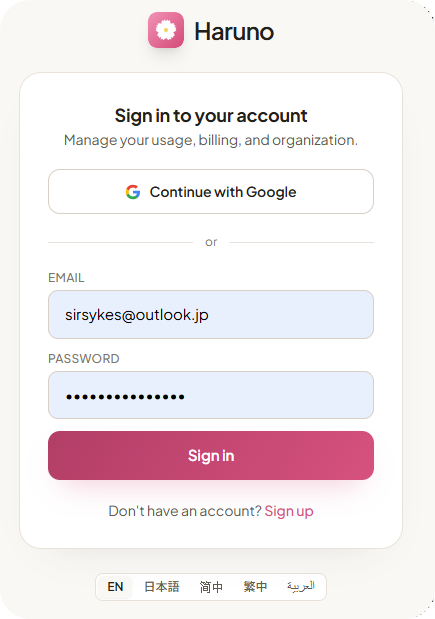
Before your first conversation, sign in to your Haruno account. On a new install Haruno first asks you to choose a project folder (next section), and the account menu appears in the sidebar once you have. To keep your password safe, the app never asks for it directly: it opens your browser, where you confirm the connection. Once you approve, the desktop app is linked to your account. Accounts can be used with Google login or with an email/password combination.
- Choose Sign In… from the account menu at the bottom of the sidebar, or open Settings (⌘,) ▸ General and click Sign in to Haruno. Your browser opens to the Haruno website.
- Check that the device name shown in the browser matches your computer's name.
- Click Authorize to link this computer to your account.
- Return to the app. You're signed in.
You can sign in on more than one computer. Manage or revoke linked computers anytime on the Account page of your Haruno account online.
How the allowance works: Usage allowance. To start a subscription, use the contact form, Talk to us.
Open your review workspace
Your reviews live in one folder, the review workspace: the folder that contains the .haruno folder. When you open it in Haruno, Haruno picks up everything the review needs from it.
- On first launch, Haruno shows Choose a project folder. Click the Choose Project Folder… button.
- Select your review workspace: the folder that contains .haruno. Pick exactly that folder, not the folder above it and not one inside it.
- To switch folders later, choose File ▸ Open Folder… (⌘O).
Haruno reads the review's settings from the folder you open and does not look in the folders around it, which is why the choice has to be exact. The workspace is self-contained: you can rename it or move it later without losing anything, including months you have already closed.
What is inside
A workspace in use looks like this:
.haruno/      the review itself: each company's spec and the close scripts
workbooks/    what each company sends, one folder per company
ledger/       the canonical ledger the close builds, with a copy of every source workbook
reports/      per company: statement package, reconciliation binder, investor report, adjustments log
dashboards/   the portfolio dashboard
Everything the close reads and writes stays in this folder.
Set up your first company
Put the company's workbooks in workbooks/<client>/ inside the workspace: the monthly financial package or its plain statement exports, the reconciliation binder, and the budget if there is one. A company that keeps its recurring revenue in a billing or CRM system can add that export as a CSV. The full list is in What a company sends.
If you want the benefit without sending client data in a conversation, run the close commands yourself (Running it yourself) and use the assistant only for parts with no client data in them. Details: Data handling and security.
Then ask Haruno to set the company up, in your own words:
Acme just signed. Their files are in workbooks — set them up.Haruno reads the workbooks and drafts a spec: which account numbers roll into which statement line, how each subtotal composes, and which lines you present against their natural sign. From a financial package, almost all of that is read out of the company's own workbook, because the statement states its own arithmetic, so the draft is not a guess. From plain statement exports there is no mapping to read yet: the draft infers it from each export's own sections and keeps the accounting platform's captions, and renaming those to the captions you present is the main item on the list below.
Read the REVIEW list
What Haruno cannot read is judgment. Those questions arrive as a # REVIEW: list at the top of the draft, for example:
- For plain statement exports, the line captions: the draft keeps the accounting platform's until you give the ones you present.
- What counts as material.
- Which missing reconciliations are expected. The list names the accounts the binder carries no schedule for.
- The company's capitalization policy: the threshold, the depreciation method and the useful lives.
- The reporting currency, when an export declares one other than US dollars or the workbooks disagree. Each company has one currency, and figures are never converted.
- How the account numbers classify: which first digit marks an asset, a liability, equity, income or an expense.
- The company's name, as read from its own files (the package's cover sheet, or the title block of its exports).
Read that list. It is the mapping conversation, and it happens once per company. Where the close needs a starting value, the draft writes one and the list says so: materiality starts as a stated default of $1,000 (in dollars, even when the statements are presented in thousands), the account classification assumes the usual first-digit convention, and the depreciation method is straight-line, the only one the close computes. Confirm them or change them. The capitalization threshold and the useful lives are never drafted: until you state them, nothing is reported against a threshold, and the fixed-asset schedule is compared only against the general ledger.
Answer in plain words, for example:
Materiality is a thousand dollars, and cash reconciles in QuickBooks.Haruno records each answer in the spec and shows you exactly what changed. An answer that excuses accounts from a check, such as cash that reconciles in QuickBooks rather than in the binder, is an exemption. Once the company has closed a month, Haruno names the accounts each exemption covers. Before that there is nothing to match against, so the first close reports an exemption that covers no account as an unused_exemption finding. Haruno does not edit your spreadsheet. Approve the spec and the close runs.
Step by step: Onboarding a company. What is always left to you: What is never decided for you.
Your first close
Once you approve the spec, the first close runs. It reads every workbook, applies the approved spec, runs the integrity checks, writes the company's reports and refreshes the dashboard. It reports the findings, anything that needs a person's decision, and the files it wrote. Haruno reads the findings out to you before anything is circulated.
Findings come first
The integrity checks run before any report is written, and they are the point: an account carrying balances that no statement line claims, a schedule whose per-GL figure disagrees with the ledger, a hand-typed difference asserting a tie the detail denies. A finding does not stop the close. It is the thing you would otherwise have found in week three.
Each finding has a severity: high, medium or low. A month is clean when it has no high or medium findings. What each check looks for is in Findings and checks. Some checks use thresholds calibrated on one company's books; treat them as starting points.
Every month after that
Put the new month's workbooks in the company's folder and say:
Close the month for Acme — the new workbooks are in.The same close runs, with no mapping conversation: the mapping is already an approved decision. If you change your mind about one, say so, for example "1450 Deposits Receivable belongs in Other assets". Haruno proposes the change as a few lines of reviewable YAML in the spec rather than editing your spreadsheet.
What you get
| Output | What it is |
|---|---|
| Statement package | The statements in the company's own layout. |
| Reconciliation binder | Every schedule recomputed, with the exceptions called out. |
| Investor report | The company's figures for the people who fund it. Findings, the mapping table and the reconciliation status are not in it, and budget against actual appears only if the company's spec says so. |
| Adjustments log | A CSV file, reports/<client>/adjustments.csv, with one row per figure each time a locked month is restated. A file with headers only means nothing was restated. |
| Portfolio dashboard | Every company in one view. |
When a company's investors ask for an update, export the investor report as a PDF and send that, not the dashboard: the dashboard carries every company and every finding.
The month is locked
The close locks the months it reported. After that, an import that would change a figure in a locked month is refused until someone reopens the month and gives a reason, and that reason is kept beside the figure it let change. Changing an approved mapping counts too, because it moves figures in months already locked.
The lock is not a verdict on the books. A month closed while high or medium findings were still open is recorded as reported with exception. The solvency indicators do not count here: they describe the company, not the bookkeeping. A company is fully reconciled only when every locked month closed with nothing unresolved.
Every report and the lock in detail: Reports and the close lock. To run the close without the assistant, see Running it yourself; it needs a standard Python 3 and nothing else.
Where to go next
You have closed a month. These pages go deeper on each part of what you just did.
The review workflow — onboarding, the mapping conversation, closing a month, and what to do when the close refuses an import.
Findings and checks — every check, what its severity means, and how to resolve a finding.
Portfolio dashboard — how to read each panel, and the reading rules that hold everywhere on it.
Data handling and security — what the close keeps on your Mac, what a conversation sends, and what we retain.