Install Haruno on Windows
Download the Windows app, complete the quick setup, and connect your Google account.
Download Haruno
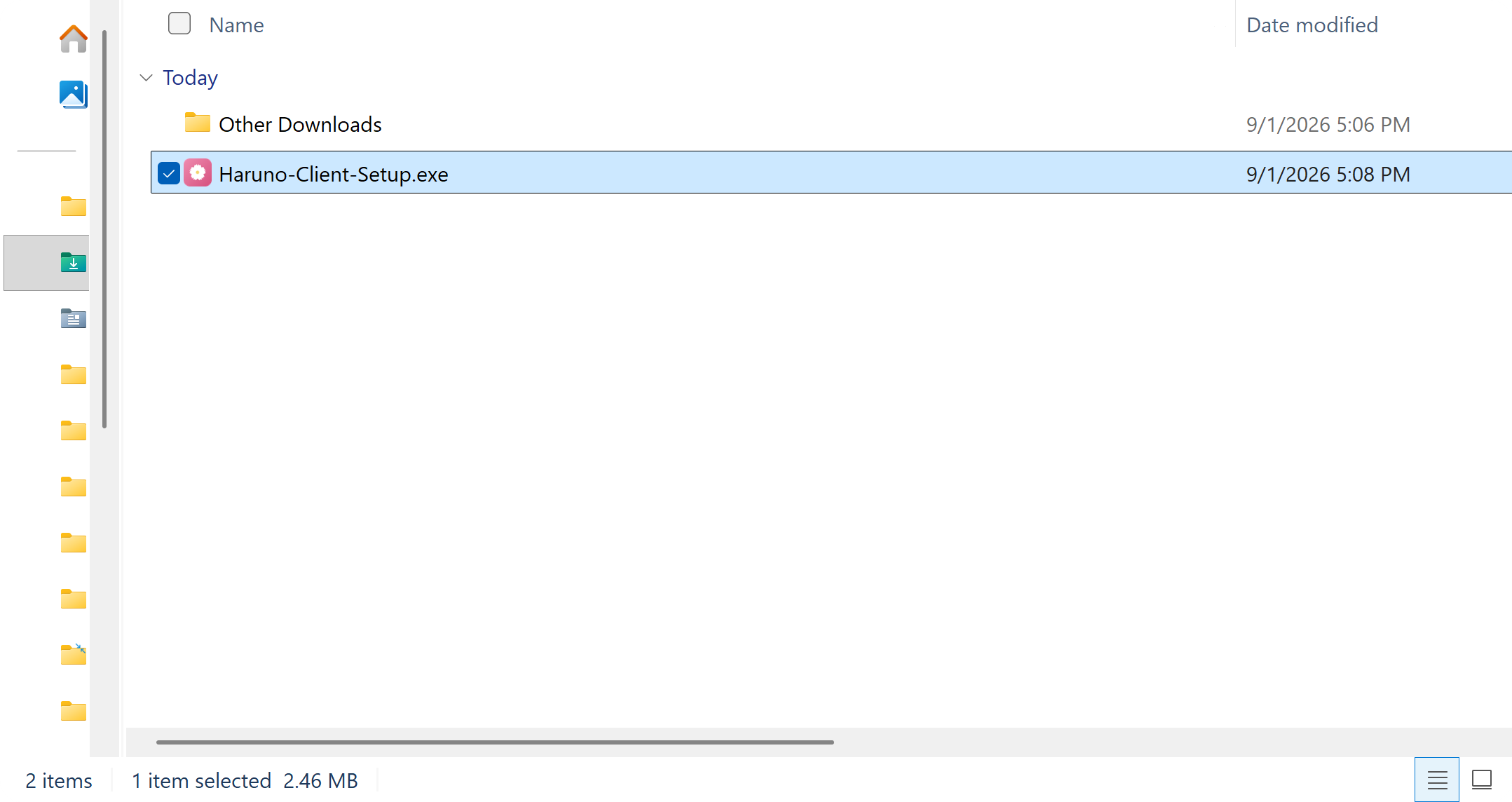
Download the Windows installer, Haruno-Client-Setup.exe, and save it somewhere you can find easily, such as your Downloads folder.
Install the app
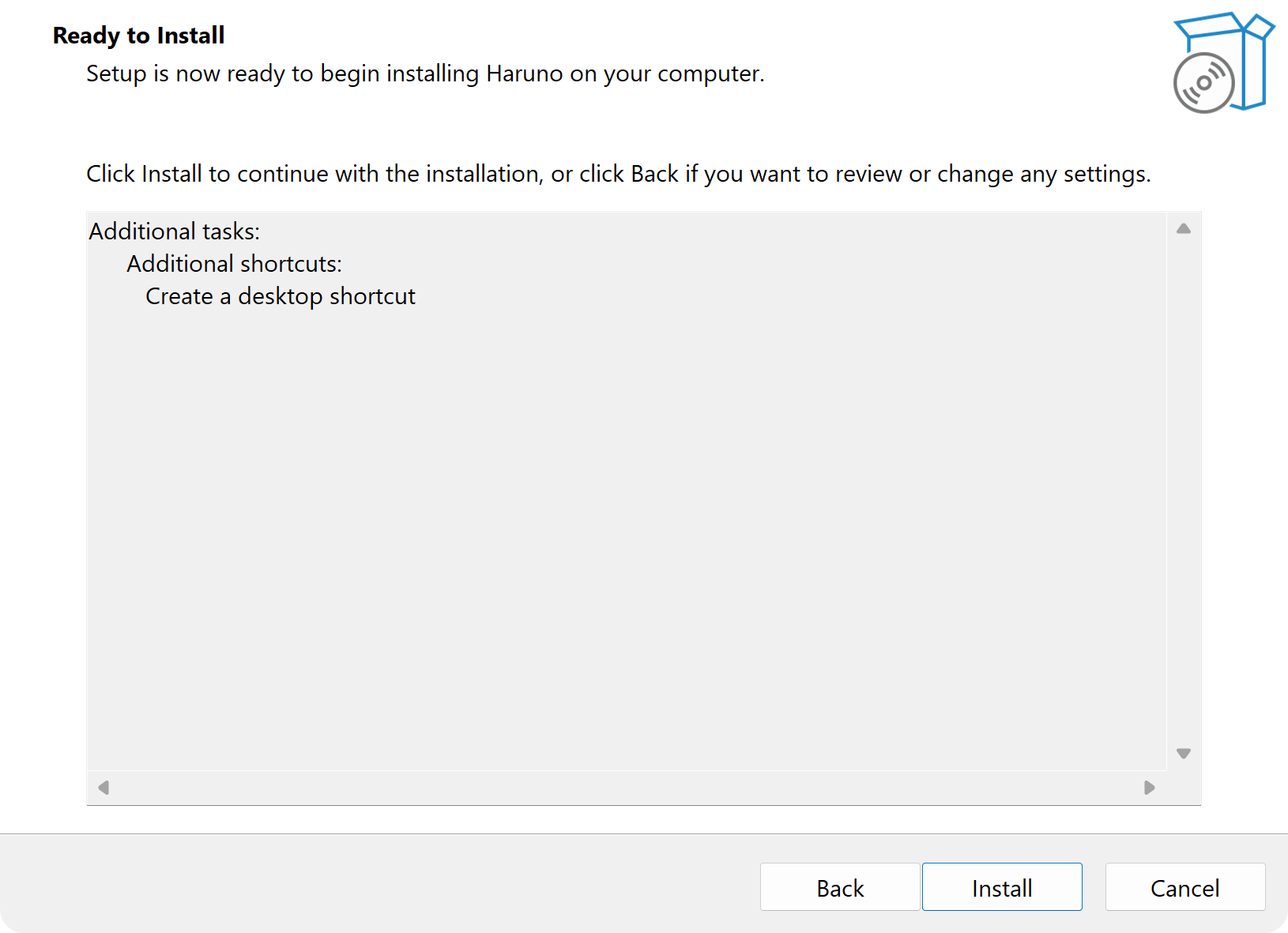
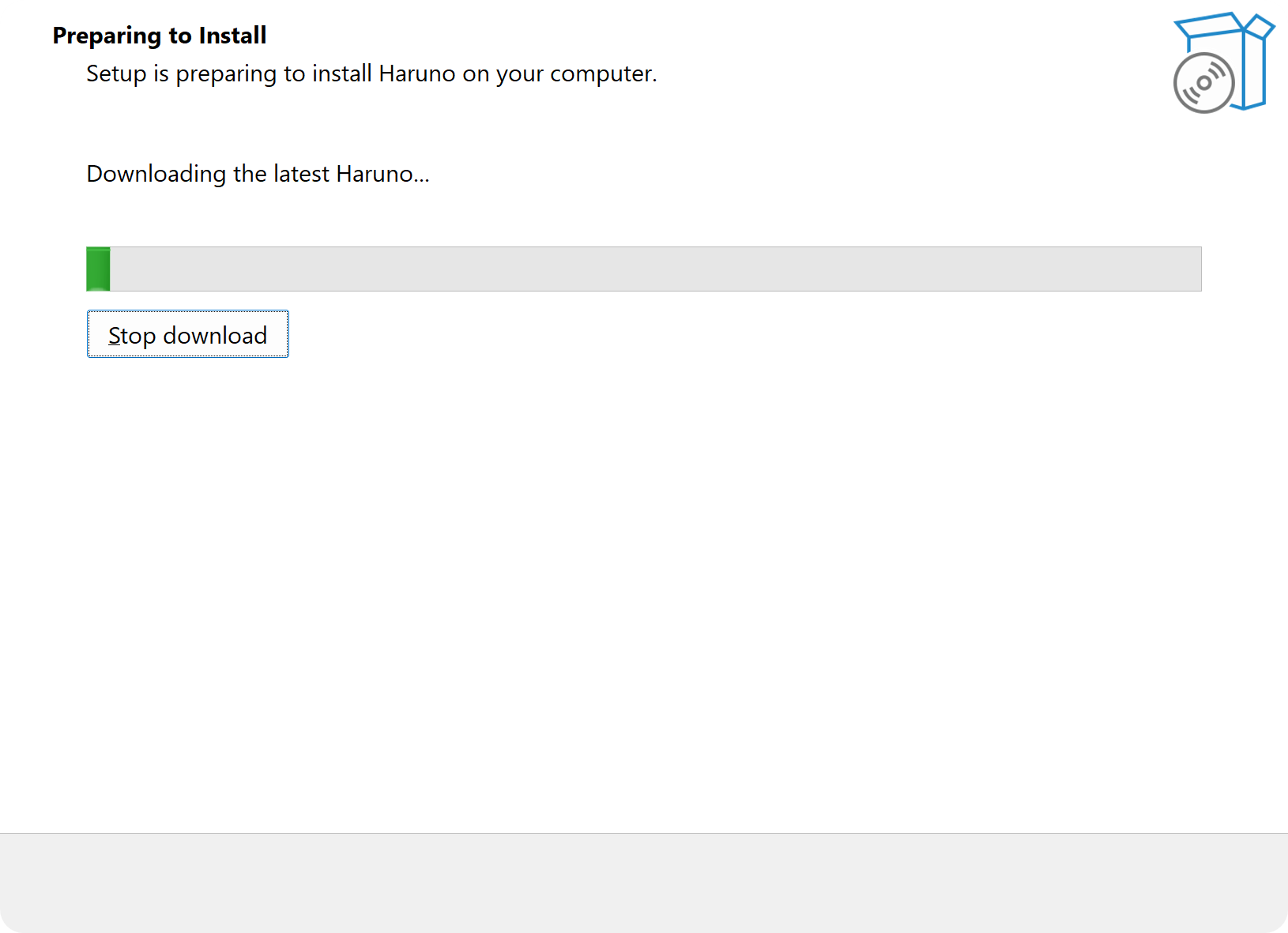
When the download finishes, run the installer and follow the prompts. Haruno installs for your Windows user account, so administrator approval is not normally needed.
- Open your Downloads folder (or wherever you saved the installer) and double-click Haruno-Client-Setup.exe.
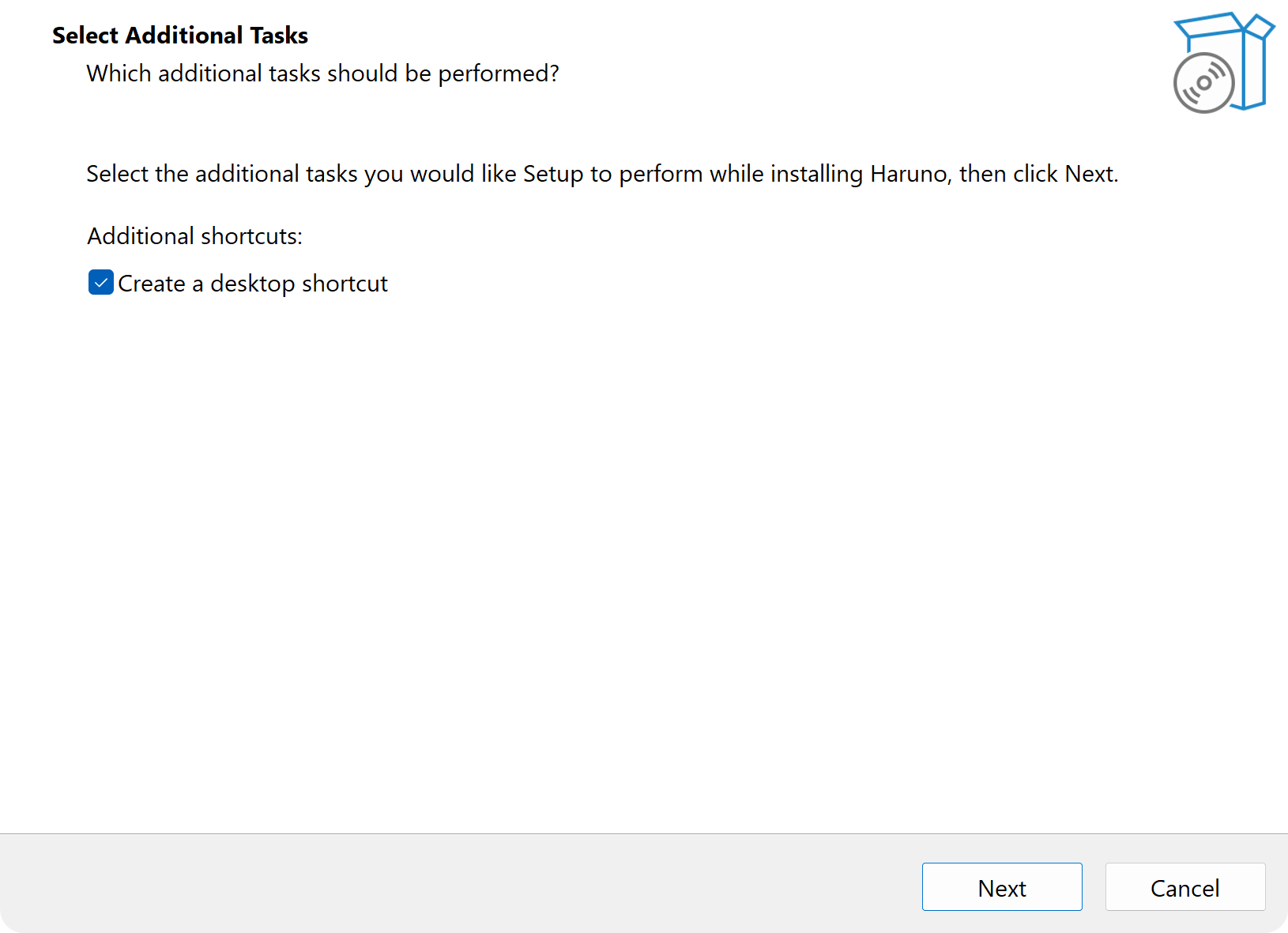
- Follow the Haruno Setup prompts.
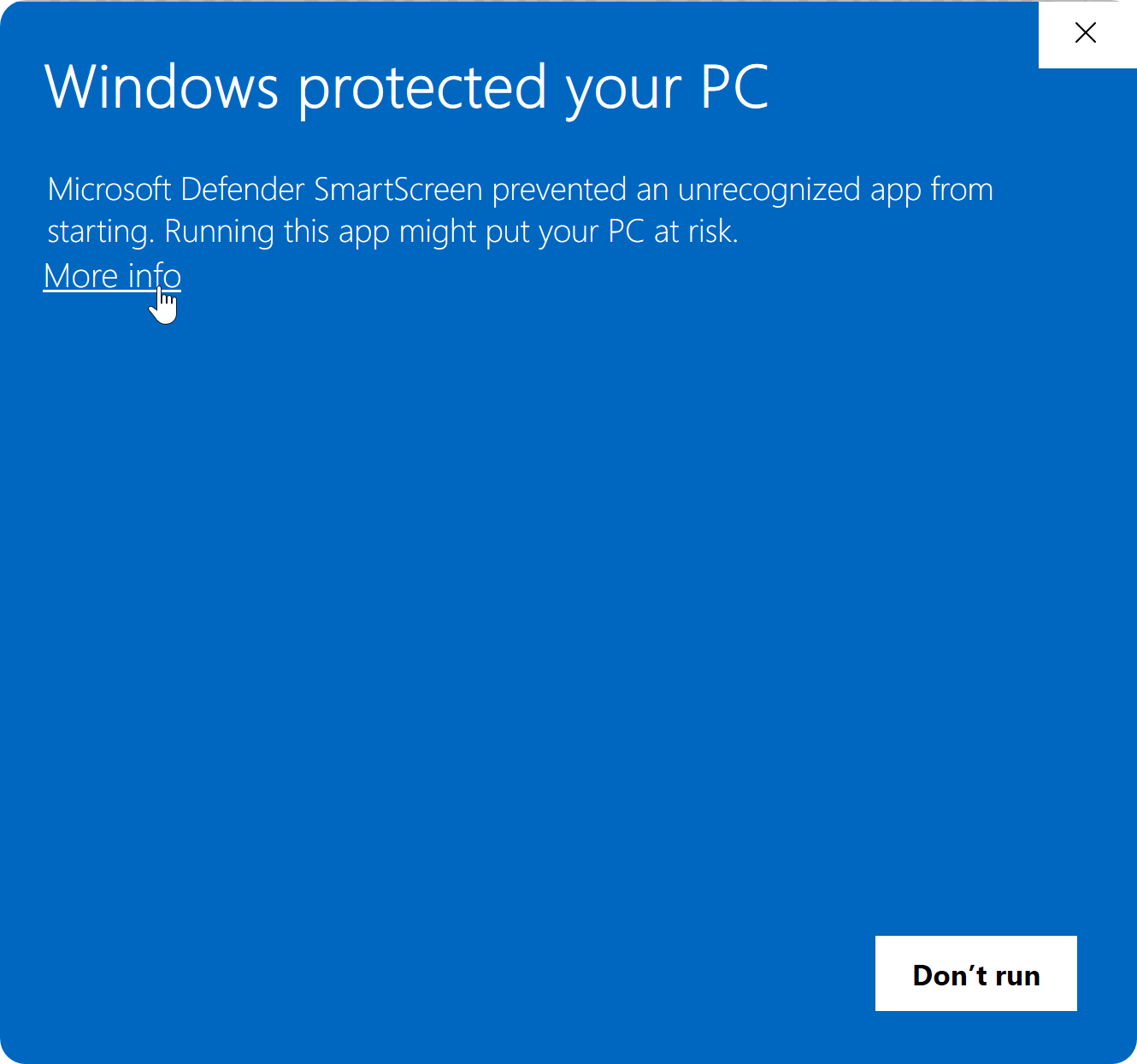
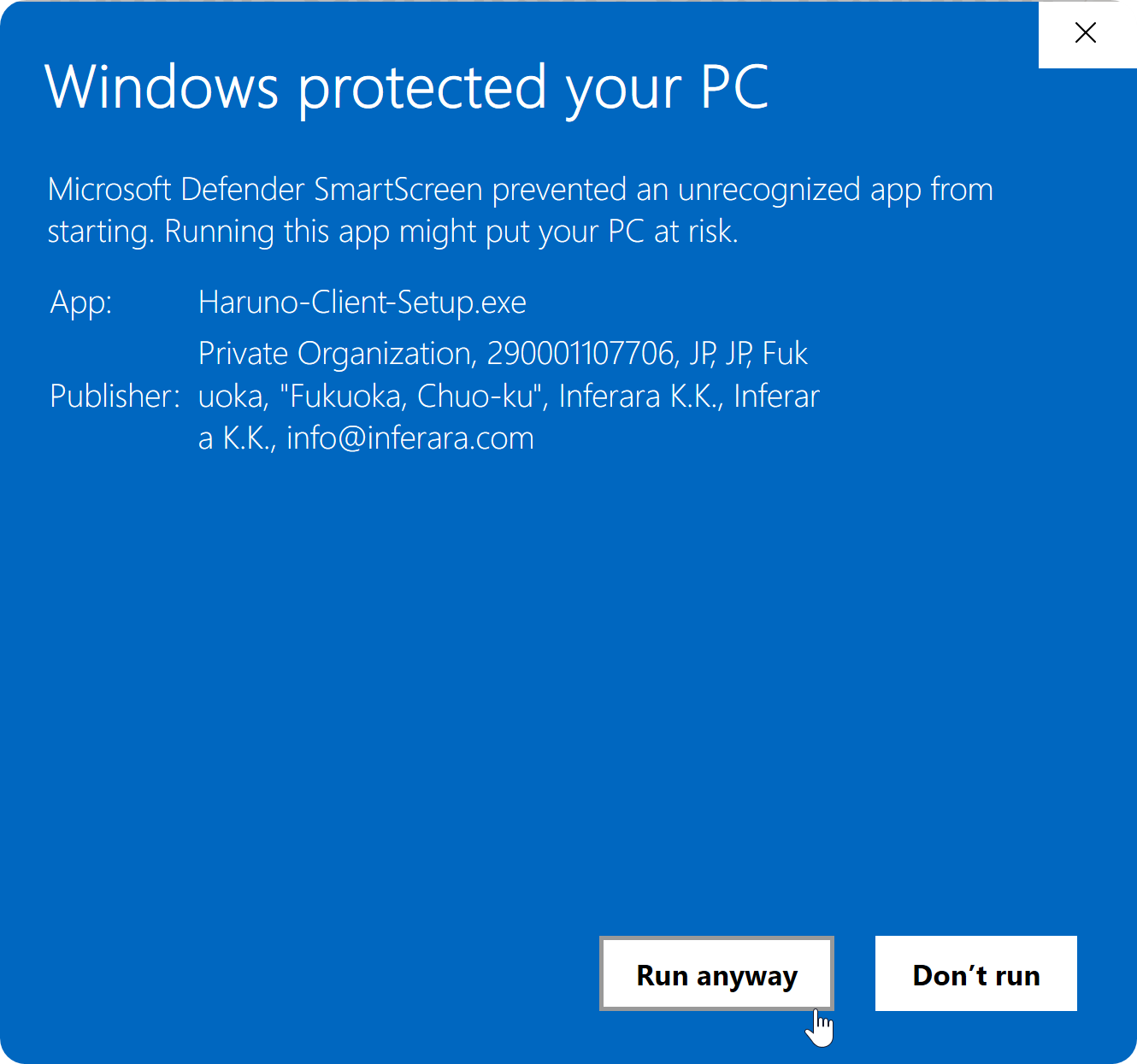
 TipIf Windows displays a security prompt, press More info, confirm you see inferara.com in the publisher section, then press Run anyway.
Troubleshoot a Windows security prompt
If you see a “Windows protected your PC” message, press More info and then Run anyway to continue.
- Wait for the installation to finish, then open Haruno when prompted.
Complete the first-time setup
Use the first-time tutorial to name your project, choose its workspace, and optionally add integrations.
- Enter a project name and continue.
- Choose a workspace folder that contains the files for that project.
- Add any integrations you need, or select Skip for now to finish setup without them.
Sign in with your browser
Sign in to connect the desktop app to your Haruno account. Haruno opens your browser for the Google sign-in step, then returns you to the app when it is complete.
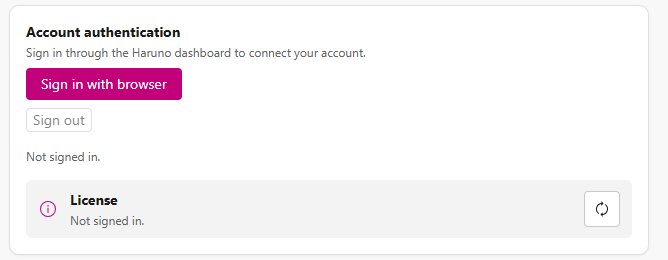
- Select Sign in with browser in Haruno.
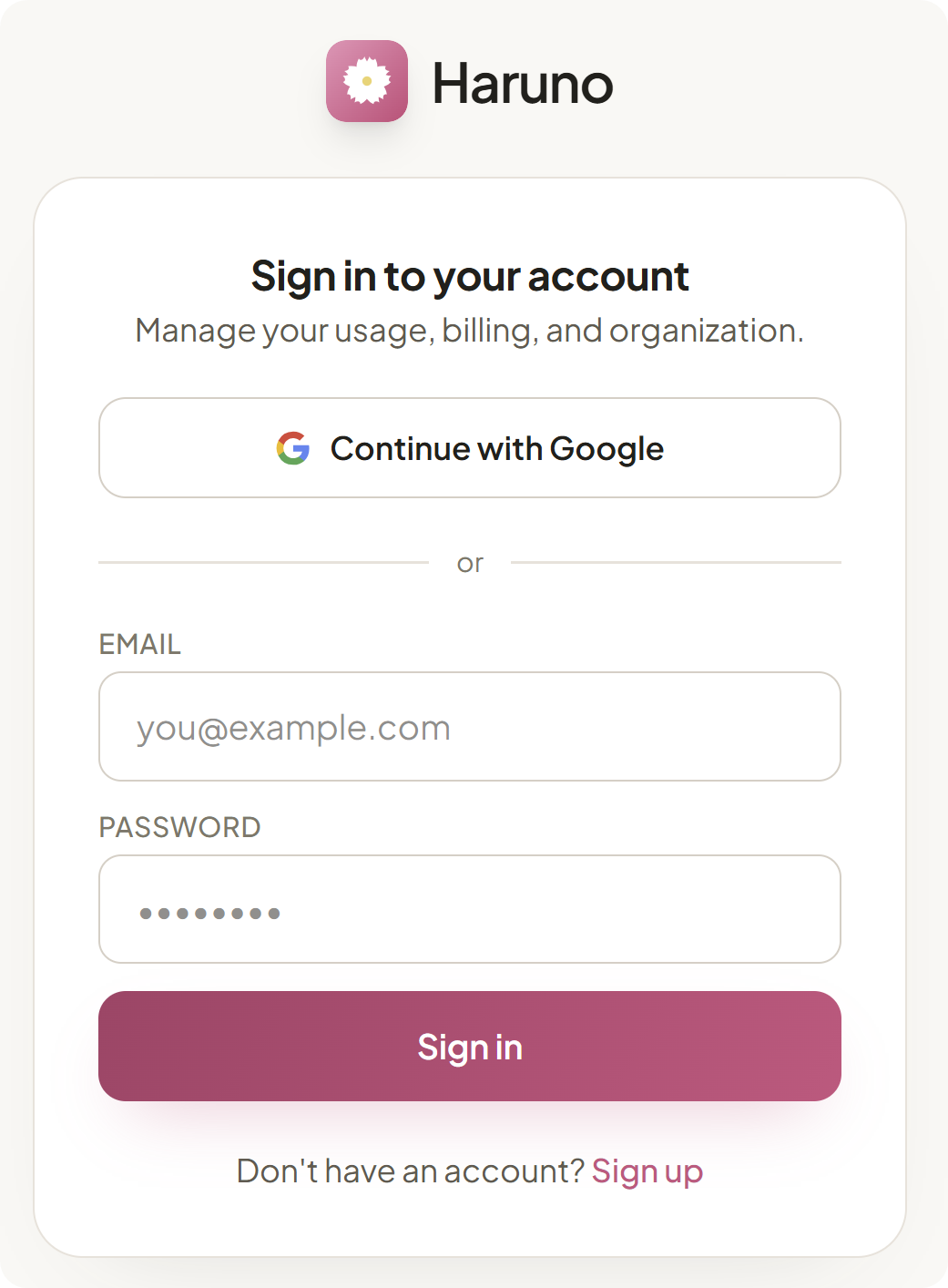
- In the browser window, choose the Google account you use with Haruno and complete Google's sign-in prompts.
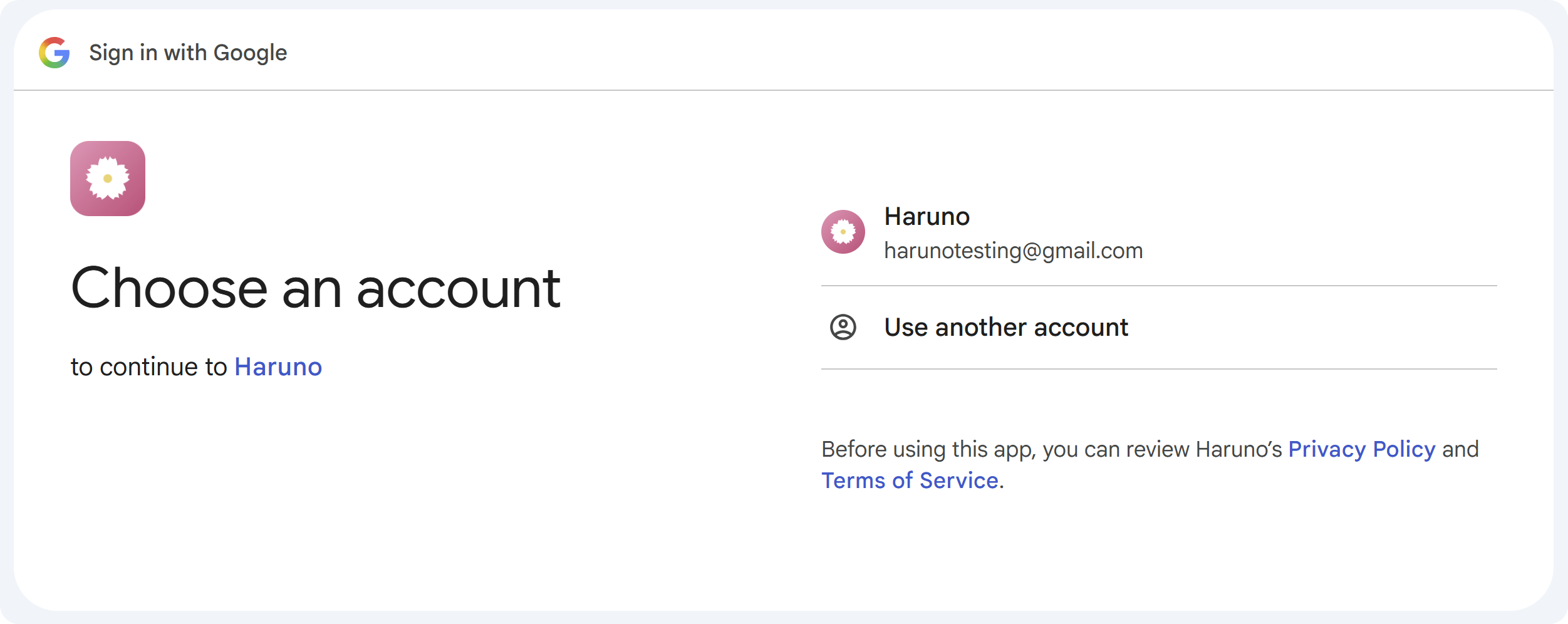
- Return to Haruno after the browser confirms the sign-in.
Check your connection
After setup and sign-in, Haruno should show that it is ready to use. Look in the lower-left corner of the app for the green status symbol and Ready. Open Settings whenever you want to confirm your account and license status.
- Ready means Haruno has finished connecting and is available for work.
- License Active in Settings confirms that your account is ready to use Haruno.
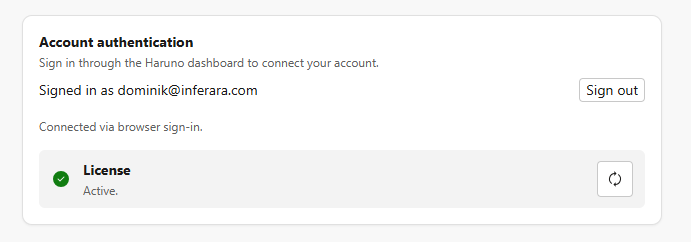
If Haruno shows Budget exhausted, you do not have a paid account or activated promo code. Visit the Account section in the Haruno dashboard to start using Haruno.
Sign in again and manage devices
Settings is also the place to recover from a disconnected session: select the browser sign-in option and complete Google sign-in again. To review devices connected to your account, open the Account area of the Haruno dashboard.
Open your Haruno dashboard account settings to view connected devices.
Automatic Updates
Haruno checks for updates automatically. Open About, marked with the circled i icon in the navigation, to see your installed version, check whether an update is available, and restart when an update is ready to apply.
In About, click the version number to copy your client and version information to the clipboard. Include the version shown there whenever you contact support about a problem.